

Client Introduction
FlClash
FlClash uses the Mihomo/Clash.Meta core and provides a cross-platform GUI with QR, local-file, and URL profile import plus dashboard proxy controls.
Configuration methods
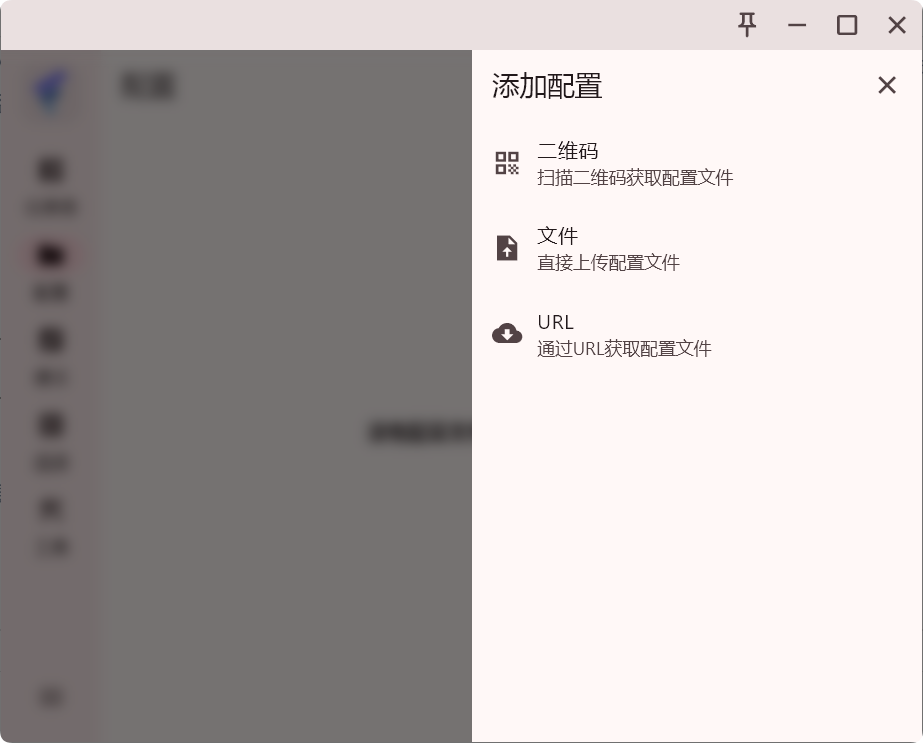
FlClash supports three import methods: scan a QR code, upload a local configuration file, or fetch by URL. The reference continues with the URL method.
Get subscription
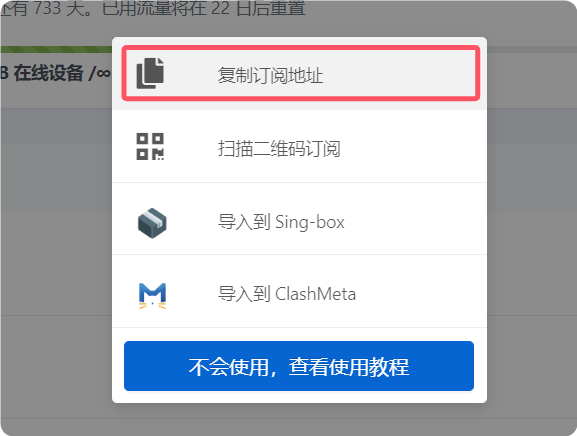
Copy the subscription URL from your provider. Fetching by URL is the method recommended in the reference because it is easier to manage and update.
Add configuration
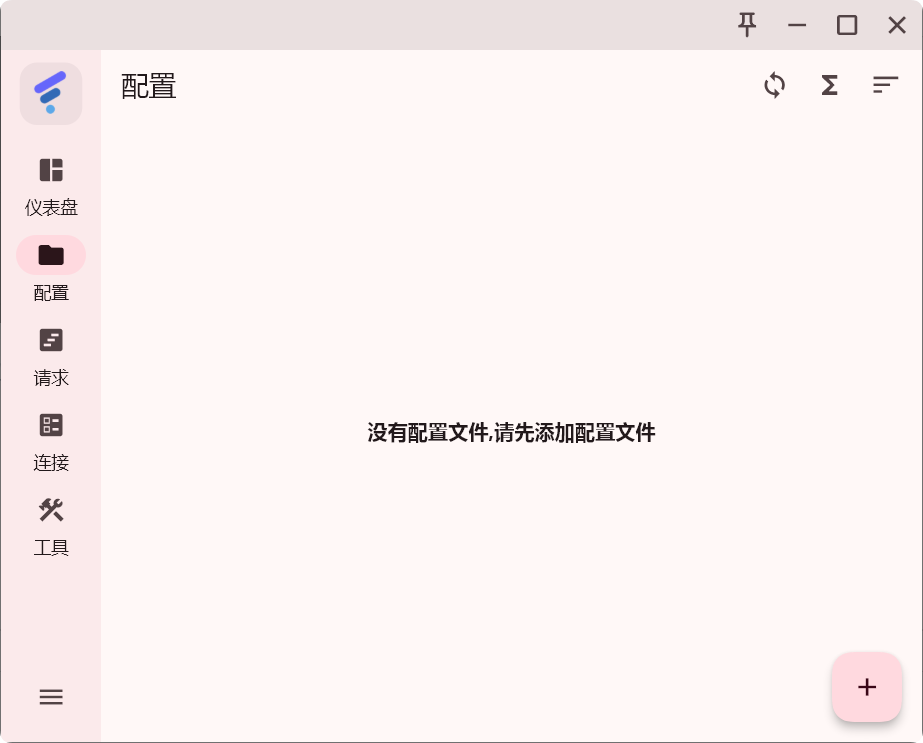
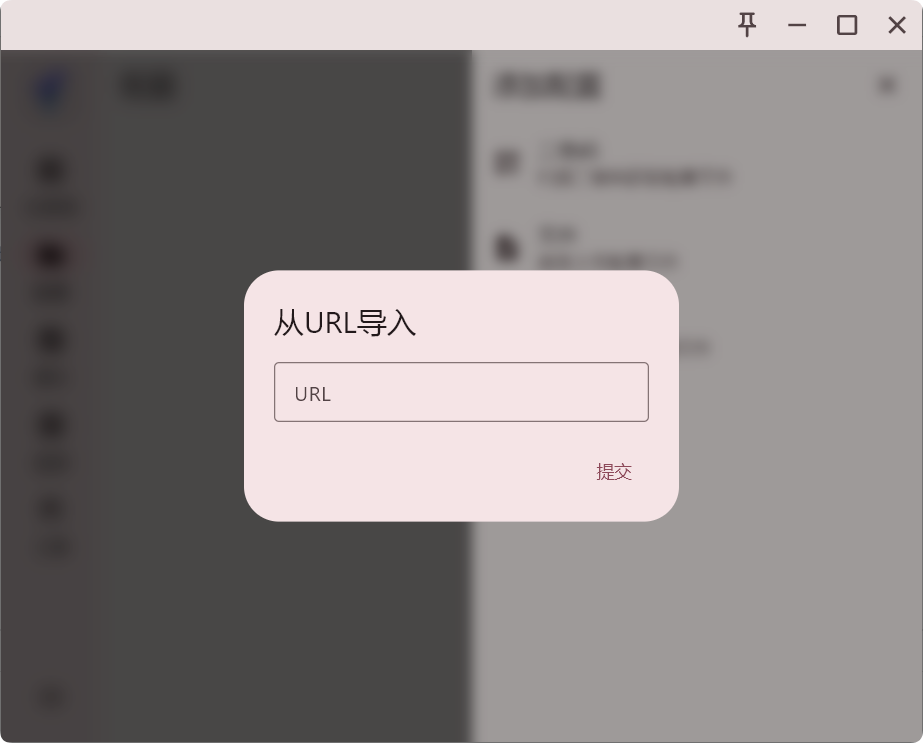
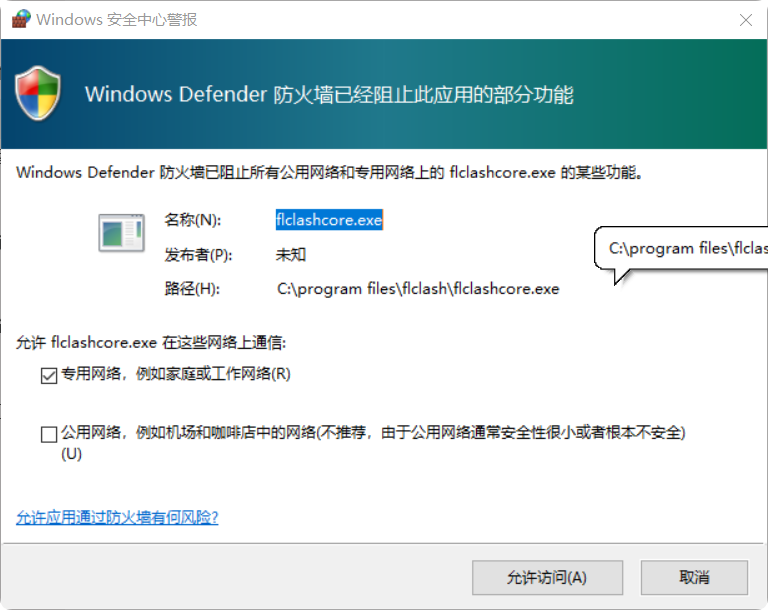
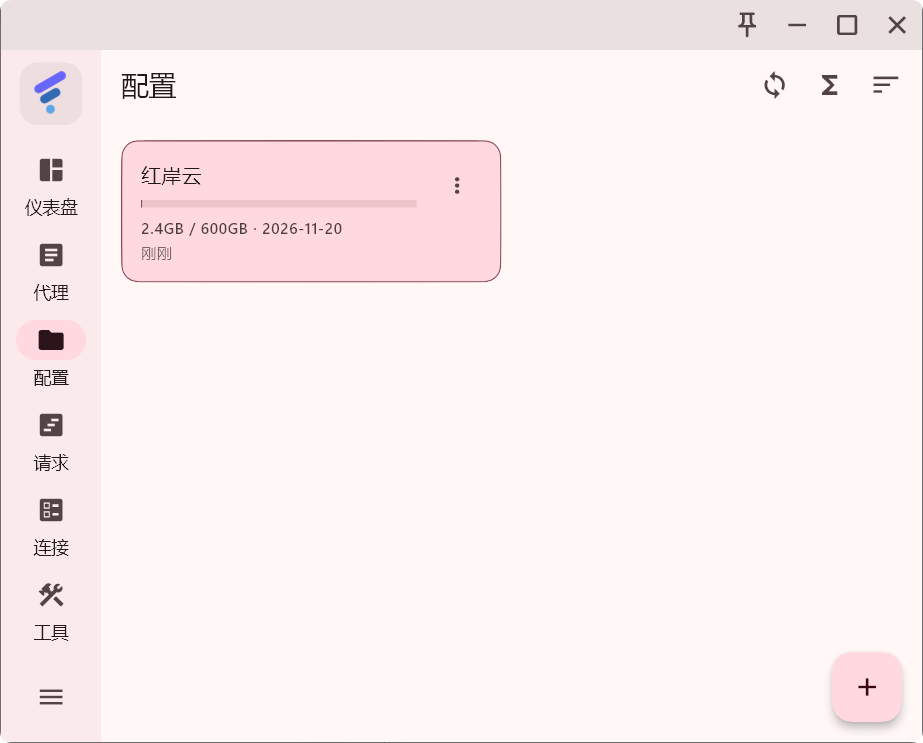
Open Configuration from the left menu, click the plus button in the lower-right corner, choose Fetch profile by URL, paste the subscription URL, and submit. On Windows, allow access if the firewall prompt appears. After import, a Proxy menu is added on the left.
Select a node
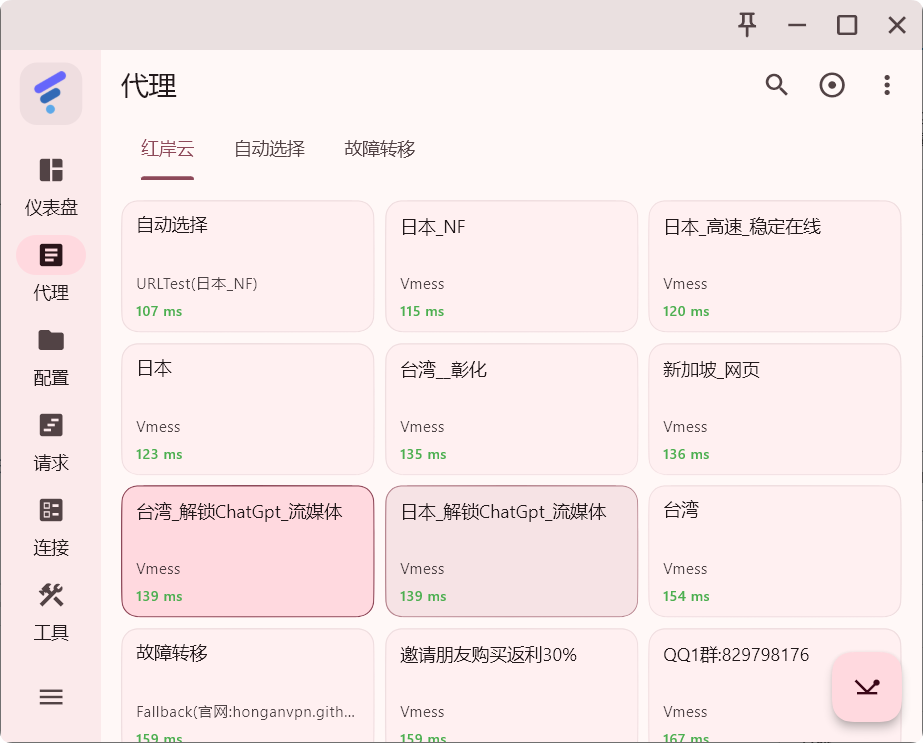
Open Proxy from the left menu to view nodes, then click a node to switch to it.
Enable proxy
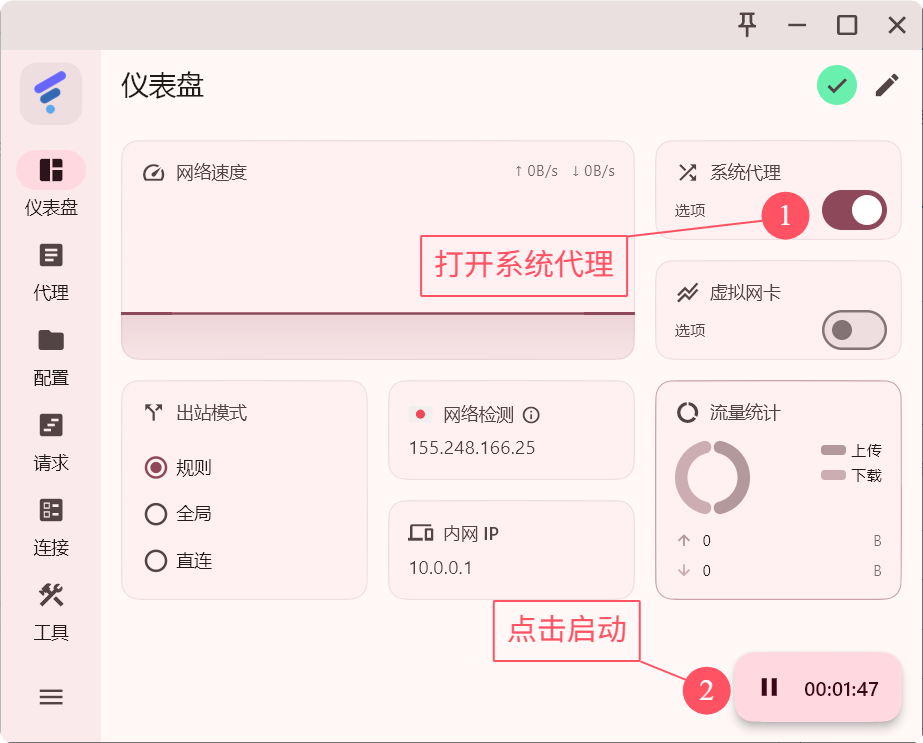
Return to Dashboard, turn on System Proxy, then click the start button in the lower-right corner. Traffic will be routed through the active FlClash profile.
Outbound mode notes
The reference describes three FlClash outbound modes: Rule, Global, and Direct.
Rule mode (recommended)
- Automatically decides proxy or direct by profile rules.
- Fits most daily use: overseas sites use proxy and domestic sites stay direct.
- Balances speed, privacy, and data usage.
Global mode
- Routes every request through the proxy server.
- Useful for node testing, testing specific access cases, or handling special network cases.
- May increase latency and slow domestic sites.
Direct mode
- Bypasses the proxy for all traffic.
- Useful when temporarily disabling proxy, accessing LAN devices, or debugging the network.