

Client Introduction
Clash Verge Rev
Clash Verge Rev continues the Verge-style desktop workflow with subscription management, node selection, system proxy controls, and common proxy modes.
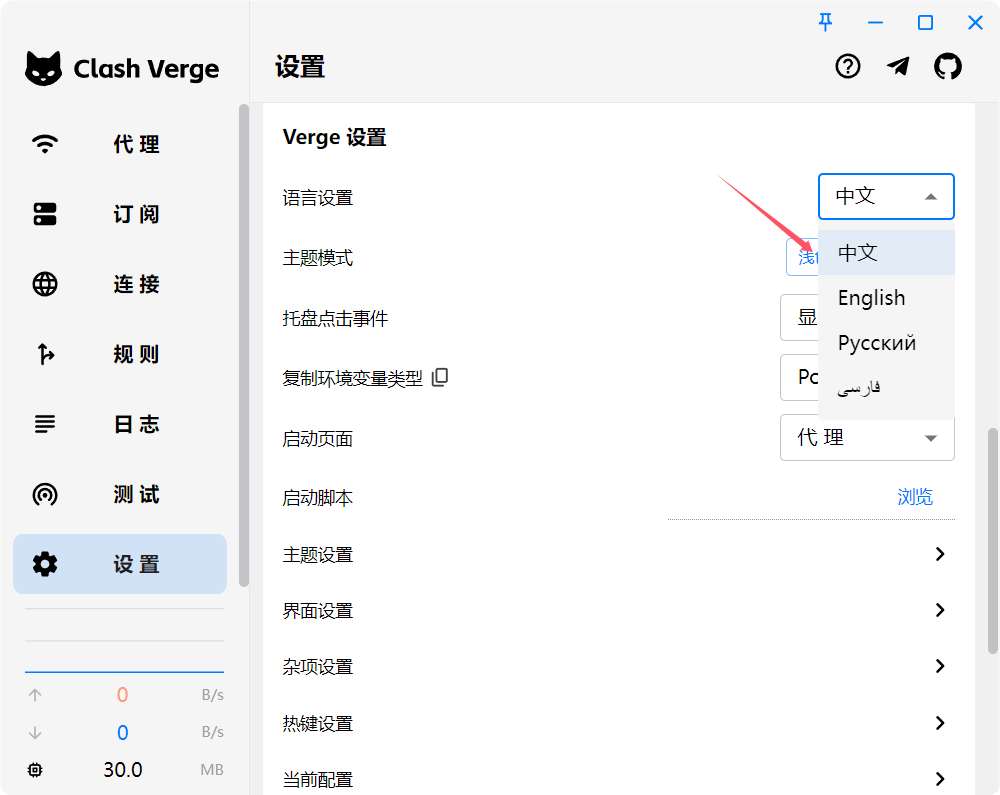
Switch language
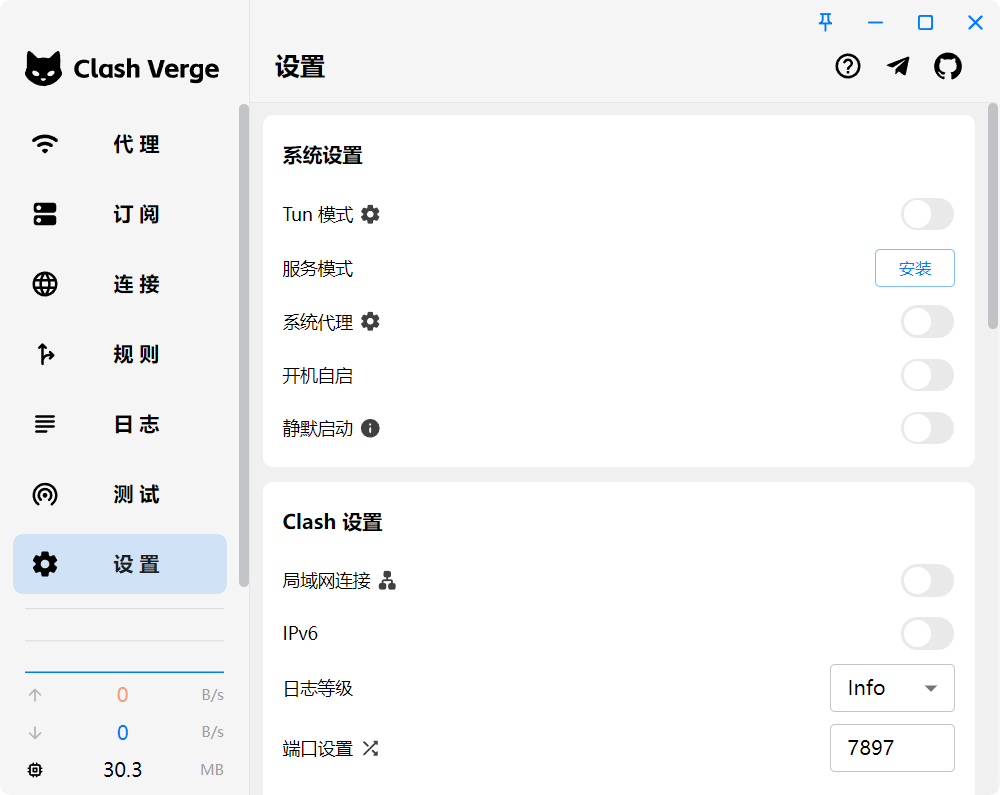
After installation, open Settings and switch the language to Chinese.
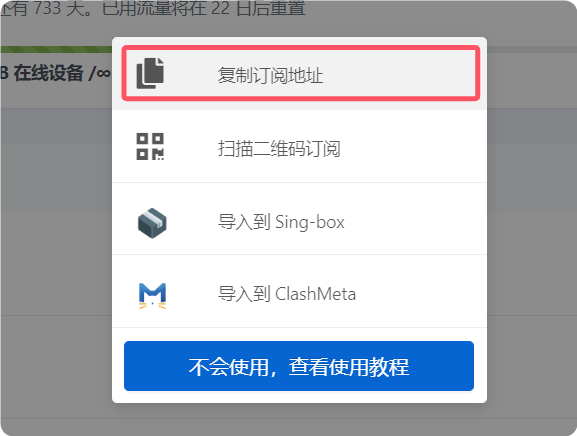
Get subscription
Copy the Clash subscription URL from your provider. This is the import method used in the reference.
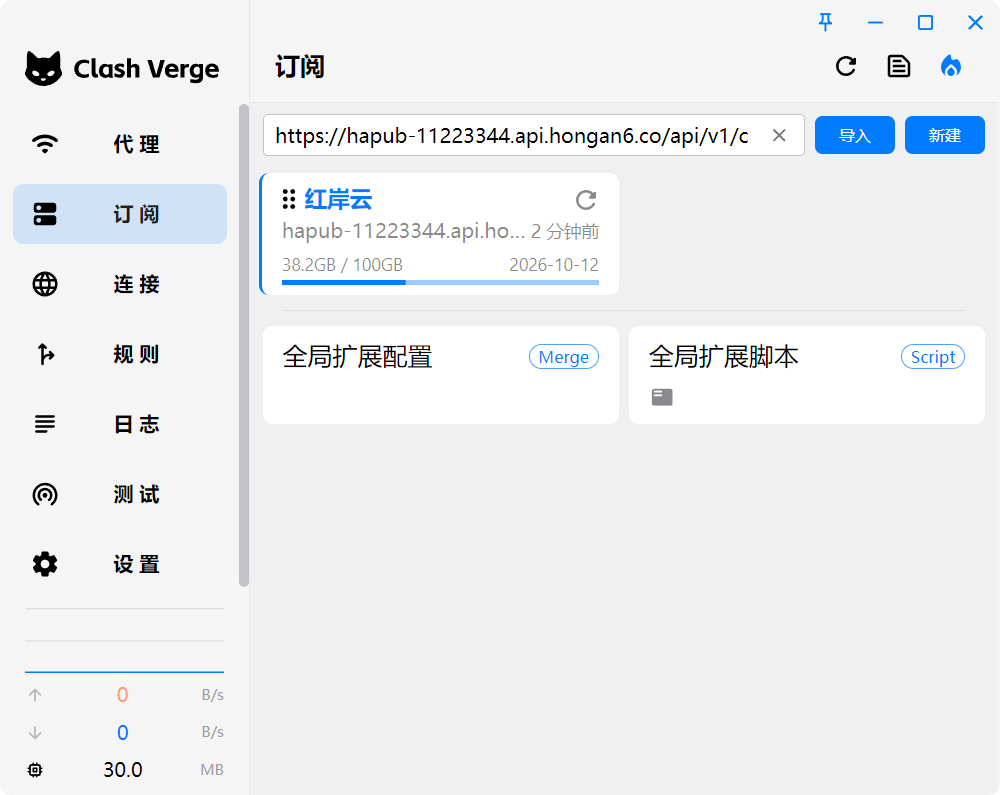
Import subscription
Open Subscriptions, paste the copied subscription URL, and click Import. The profile appears after a successful import.
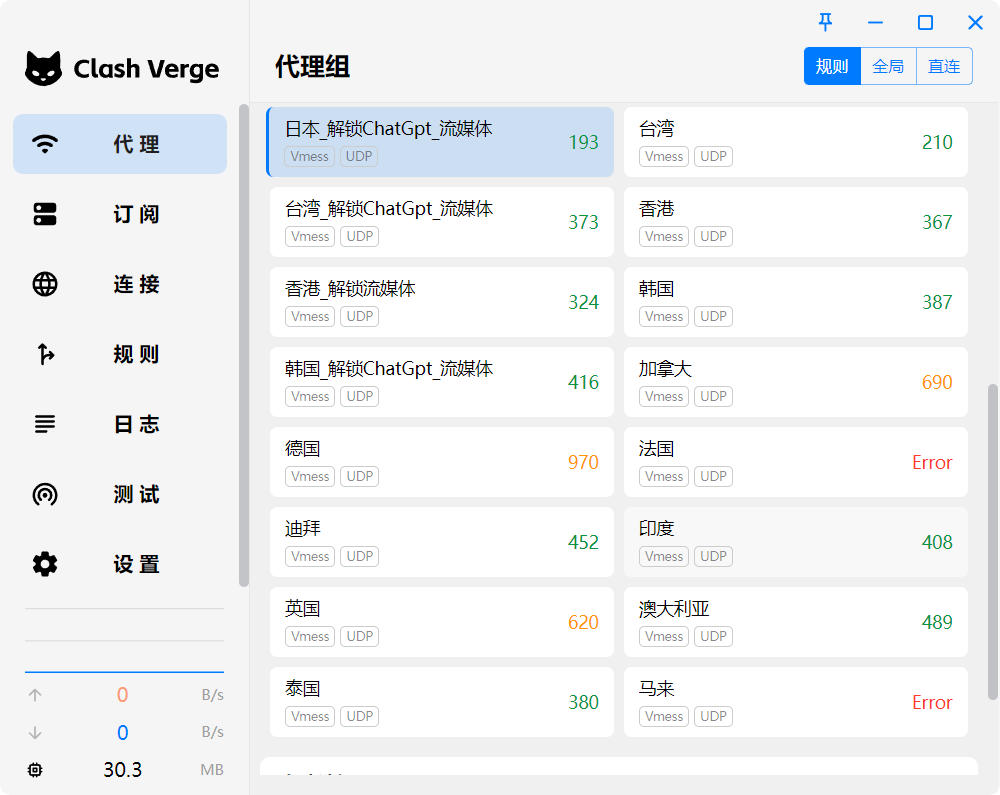
Select a node
Open Proxies and select a node from the proxy list provided by your subscription.
Enable proxy
After configuration, open Settings and turn on System Proxy. System traffic will then be routed through the active Clash Verge Rev profile.
Proxy mode notes
The proxy page supports Global, Rule, and Direct modes. Rule mode routes traffic by profile rules and is usually the recommended daily mode.
- Global: send all requests through the proxy server.
- Rule: route by profile rules, usually recommended.
- Direct: send all requests directly to the destination.